
LexiGuard
Governed acronym glossary for SharePoint, with inline highlighting — so the meaning of a term is right where people read it.
Every organization runs on acronyms, and the authoritative list is a spreadsheet someone emailed around. Readers guess, new staff ask, and documents keep introducing terms nobody ever defined.
One governed glossary list in SharePoint Online, and the meanings show up where people actually read — approved acronyms underlined on the page, expansion and definition on hover.
One glossary, surfaced everywhere people read.
Inline highlighting
An application customizer underlines approved acronyms on modern pages — hover for the expansion, the definition, and a link to the glossary.
Searchable glossary
Search, A–Z browse, and category filters for readers; add, edit, and CSV import and export for editors.
Approval workflow
Editors add terms as Pending, and the approvers you choose approve them. Only approved terms are highlighted.
Document scanner
Finds undefined acronyms in .docx and text-based .pdf files, in the browser, and offers one-click add.
Central or standalone
Point every web part and highlighter at one central glossary list, or run each site on its own.
Governed by SharePoint
List versioning records every change, and standard list permissions control who can view, edit, and approve.
See LexiGuard in action
See the inline highlighter on a real SharePoint page, then the governed glossary behind it: search, A–Z browse, proposing a new term for approval, and the document scanner that finds acronyms nobody has defined yet.
A closer look
LexiGuard as your readers, editors, and approvers actually see it.
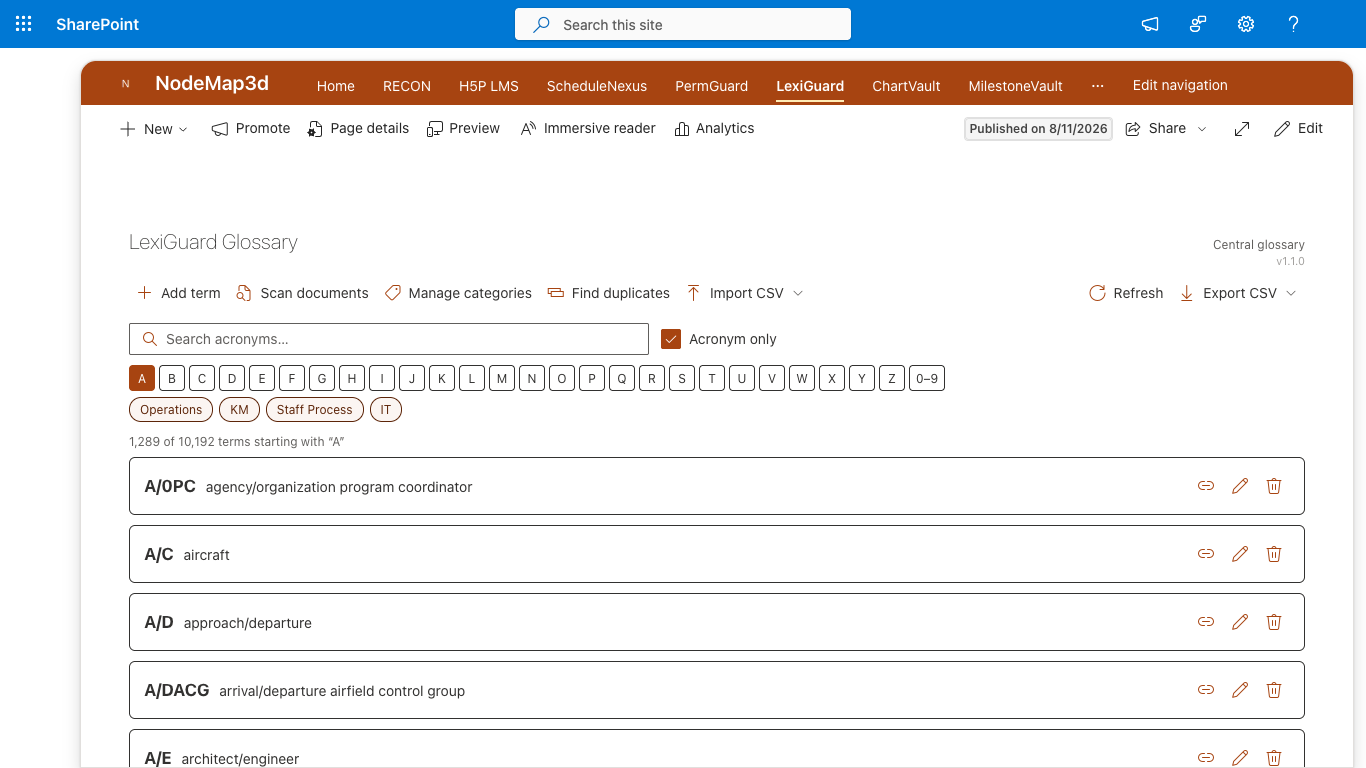
The glossary — search, A–Z index, and category chips.
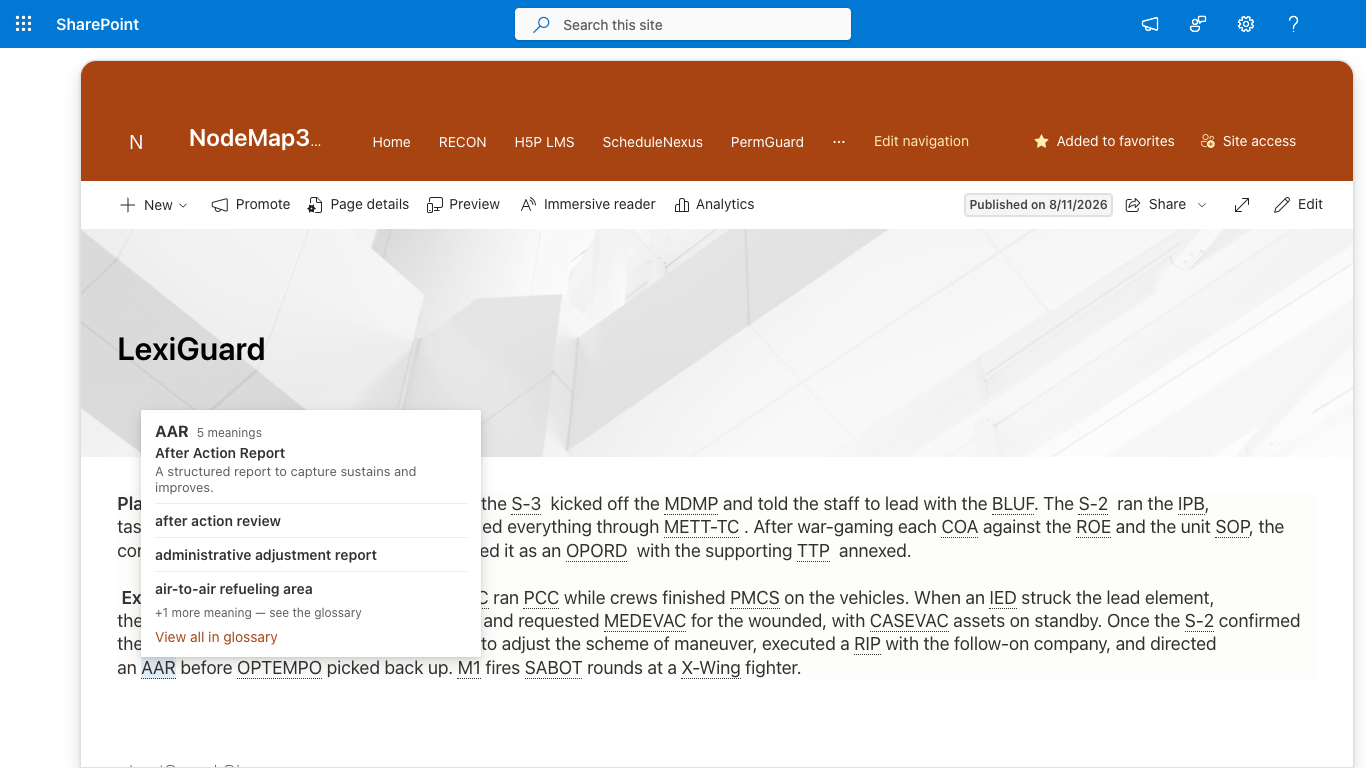
LexiHighlighter — hover an underlined acronym on any modern page.
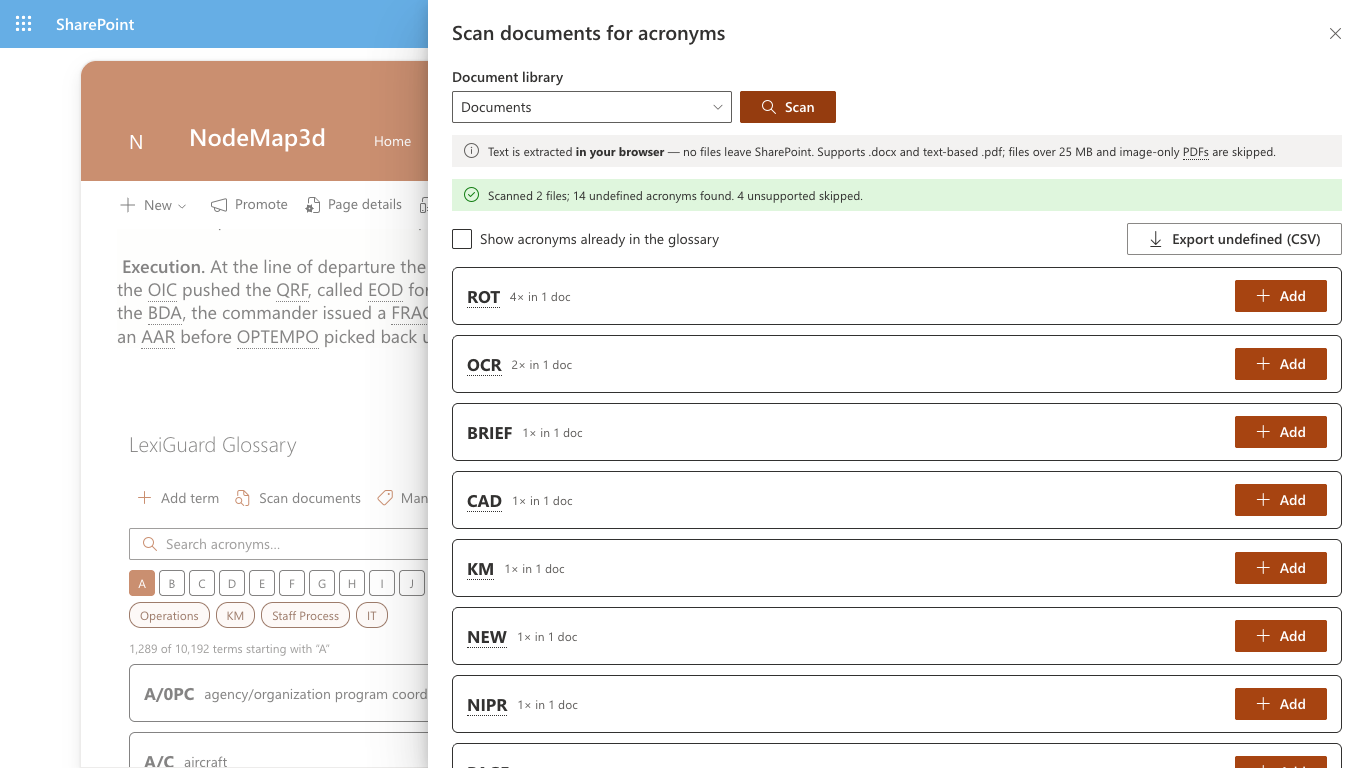
The document scanner — undefined acronyms found in a library.
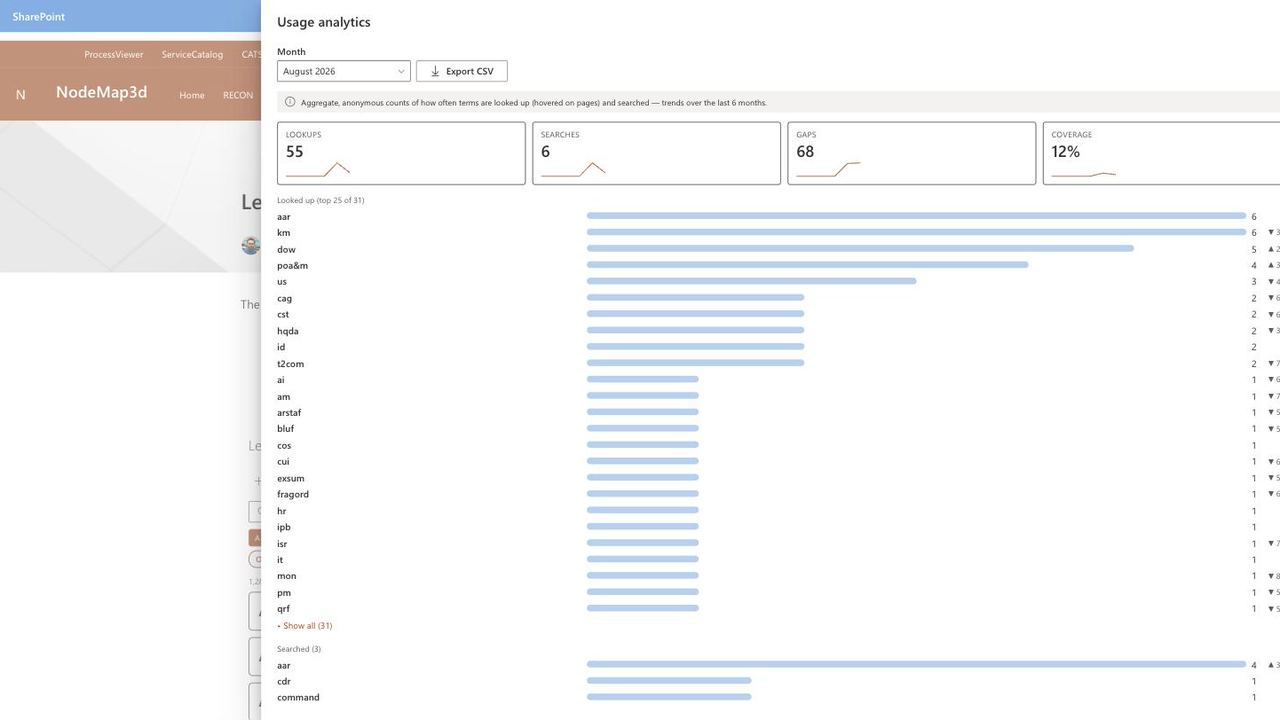
Glossary analytics — coverage and term activity at a glance.
LexiGuard, answered.
What is LexiGuard?
LexiGuard is a governed acronym glossary for SharePoint Online, built on the SharePoint Framework (SPFx). The glossary is a SharePoint list with an approval workflow, and an application customizer underlines approved acronyms on modern pages, so readers can hover for the expansion and definition right where they read. Every web part and highlighter can point at one central glossary list, or each site can run its own.
Which terms does LexiGuard highlight?
Only approved ones. Editors add terms as Pending, and the approvers you choose approve them. List versioning records every change, and standard SharePoint list permissions control who can view, edit and approve.
Can LexiGuard find acronyms nobody has defined yet?
Yes. The document scanner finds undefined acronyms in .docx and text-based .pdf files, in the browser, and offers one-click add to the glossary.
Does LexiGuard send any data outside my tenant?
Your glossary, pages and documents stay in your Microsoft 365 tenant. The commercial edition makes one kind of outbound call: a licence check with the DK Solutions 999 licensing service, which sends only your Microsoft Entra tenant ID, the product identifier and, if an administrator enters one, a licence key. No user information or content is sent. Our Privacy Policy (Section 2.4) has the details.
Can LexiGuard run in a GCC or GCC High tenant?
Yes. DK Solutions 999 software is compatible with Microsoft 365 commercial, GCC and GCC High environments. Government editions are distributed separately; they perform no licence check and make no calls to DK Solutions 999.
Built by Darrin Kay, founder of DK Solutions 999 — a SharePoint/M365 engineer and former U.S. Army knowledge manager. DK Solutions 999 builds tenant-native SPFx tools for regulated Microsoft 365 environments.
Stop guessing what the acronym meant.
See LexiGuard running against your own SharePoint sites in a short, focused demo.